The Short Answer
Apple does not provide any built-in way to convert a regular video into a Live Photo. Not in the Photos app, not in Shortcuts, not in iMovie, not in Files. The conversion Apple supports is strictly one-directional: Camera → Live Photo → Video. There is no reverse path using only built-in tools.
If you’ve been searching for “how to turn video into Live Photo iPhone without app,” here’s the answer that will save you time: you need a third-party app. There’s no workaround, no hidden setting, no shortcut trick.
That said, depending on what you’re actually trying to achieve, there are some native alternatives that might be exactly what you need. Let’s start with understanding why this limitation exists.
What Is a Live Photo, Technically?
A Live Photo isn’t just a short video. It’s actually two paired files bound together by a shared identifier:
These two files are paired through a UUID identifier. The .MOV file also contains a special metadata track (com.apple.quicktime.still-image-time) that marks exactly which frame corresponds to the key photo. This pairing mechanism is what makes a Live Photo a Live Photo.
Why No Built-in Tool Can Do This
Now you can see the problem. To turn a regular video into a Live Photo, you’d need to:
- Extract a single frame from the video and save it as a full-resolution .HEIC still image.
- Trim the video to ~3 seconds and re-encode it at the correct resolution.
- Generate matching UUID identifiers for both files.
- Inject the
still-image-timemetadata track into the .MOV file. - Register the paired files in the Photos library with the correct Live Photo asset type.
No consumer-facing Apple app can do this. The Shortcuts app has no “Make Live Photo” action, the Photos app has no import-as-Live-Photo option, and iMovie doesn’t support the format at all.
Native Alternative: Live Photo as Lock Screen Wallpaper
This is often what people actually want when they search “turn video into live wallpaper.” If you already have a Live Photo (not a video), you can set it as an animated Lock Screen wallpaper that auto-plays when your iPhone wakes up.
Via Settings
- Open Settings → Wallpaper.
- Tap Add New Wallpaper.
- Tap Photos at the top of the picker.
- Navigate to your Live Photos (use the filter if available).
- Select a Live Photo. You’ll see it animate in the preview.
- Customize position and widgets as desired.
- Tap Add → choose Set as Wallpaper Pair or Customize Home Screen.
Quick Method via Lock Screen
- Long-press on your Lock Screen.
- Tap the + button.
- Select Photos → choose a Live Photo.
- Tap Add.
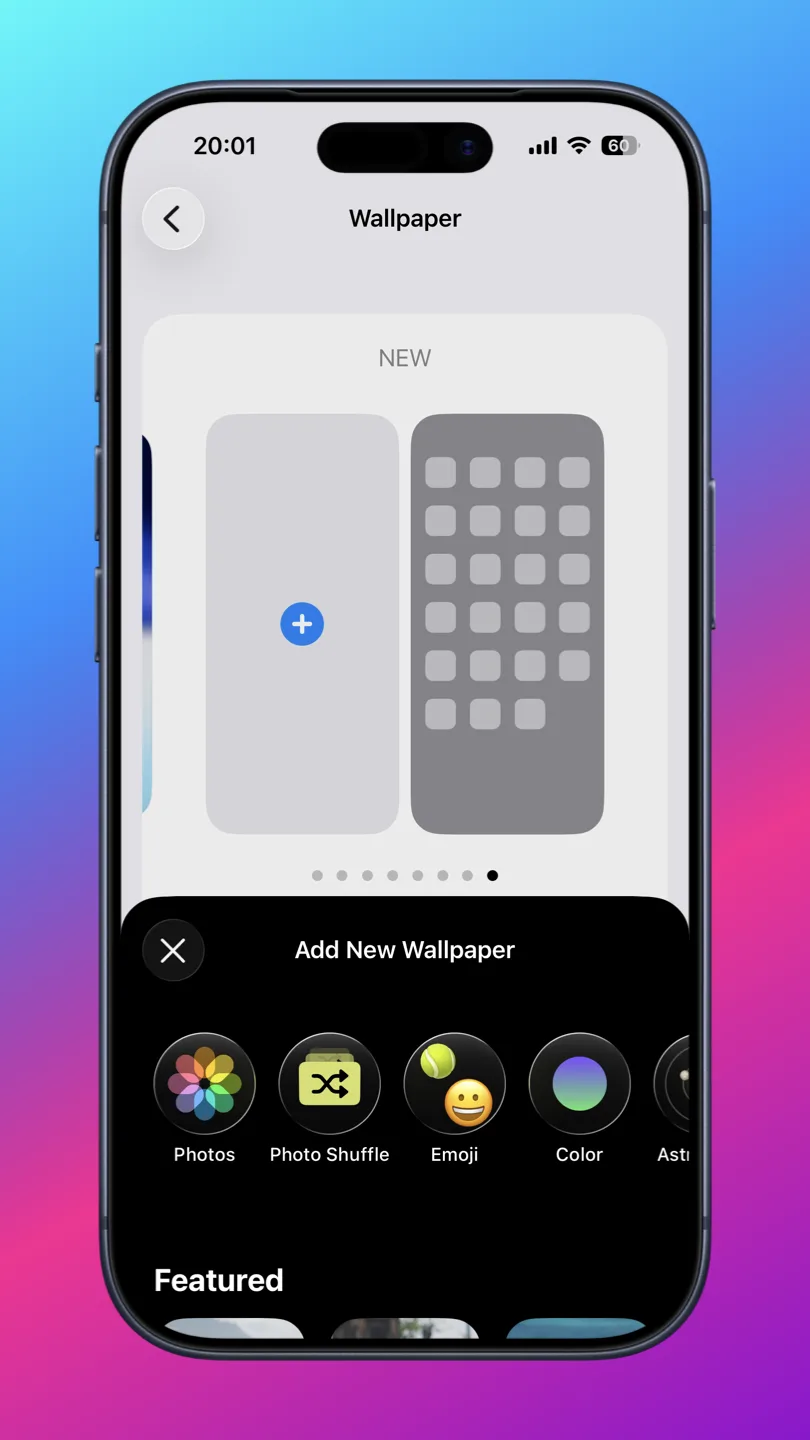
The animation plays automatically when your iPhone wakes. No press-and-hold needed. However, it only works on the Lock Screen (the Home Screen stays static), and audio is always muted.
Native Alternative: Live Photo Effects
If you already have Live Photos and want to make them more interesting, the Photos app offers three built-in effects that transform how they play back.
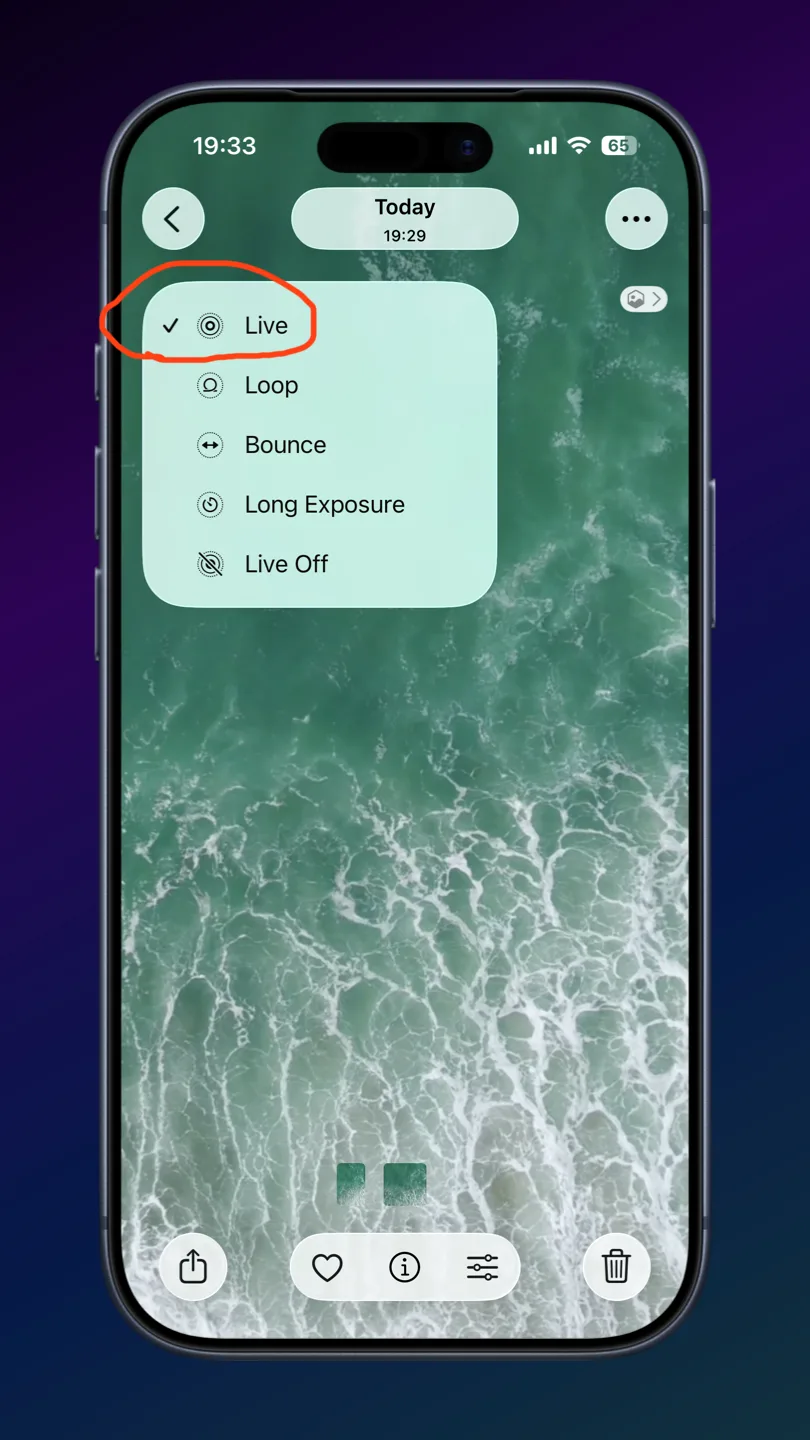
- Open a Live Photo in the Photos app.
- Tap the “LIVE” label in the upper-left corner.
- Choose from the dropdown: Loop, Bounce, or Long Exposure.
Loop plays the animation in a continuous cycle. Bounce plays it forward then backward. Long Exposure blurs motion into a still image, like a professional long-exposure photograph. Note that Loop and Bounce are playback effects only. They don’t create separate video files and don’t include audio.
The Third-Party App Route
If you truly need to convert a video into a Live Photo, third-party apps are the only option. Two apps are the go-to solutions:
Both apps handle the technical work behind the scenes: extracting a key frame, generating the paired file structure, and injecting the required metadata. The resulting Live Photo works exactly like one captured by your camera, including as an animated wallpaper.
If your goal is specifically to create an animated Lock Screen wallpaper from a video, using one of these apps to convert the video into a Live Photo first is the standard workflow. There’s no shortcut around it.
Limitations & Tips
- No video wallpapers natively. iOS does not allow setting a regular .MOV or .MP4 video as wallpaper. Only actual Live Photos work as animated wallpapers.
- Wallpaper animation is short. Live Photo wallpapers play roughly 1–2 seconds of animation on the Lock Screen. Longer clips get trimmed.
- Low Power Mode kills animation. When Low Power Mode is active, Live Photo wallpaper animation is disabled entirely. Your wallpaper becomes a static image.
- Audio is always muted on wallpapers. Even if your Live Photo has audio, the Lock Screen wallpaper plays silently.
- Free app limits. intoLive’s free version caps conversion at ~5 seconds. For longer clips, you’ll need the paid version.
- Home Screen stays static. The animation only plays on the Lock Screen. The Home Screen wallpaper is always a still image, even if set from the same Live Photo.