Want to grab a perfect still photo from a video on your iPhone? AI Frame Grabber gives you two ways to do it — manually pick a single frame, or let AI automatically find the best shots for you.
Method 1: Save the Current Frame
This is the simplest way to capture a photo from any moment in your video.
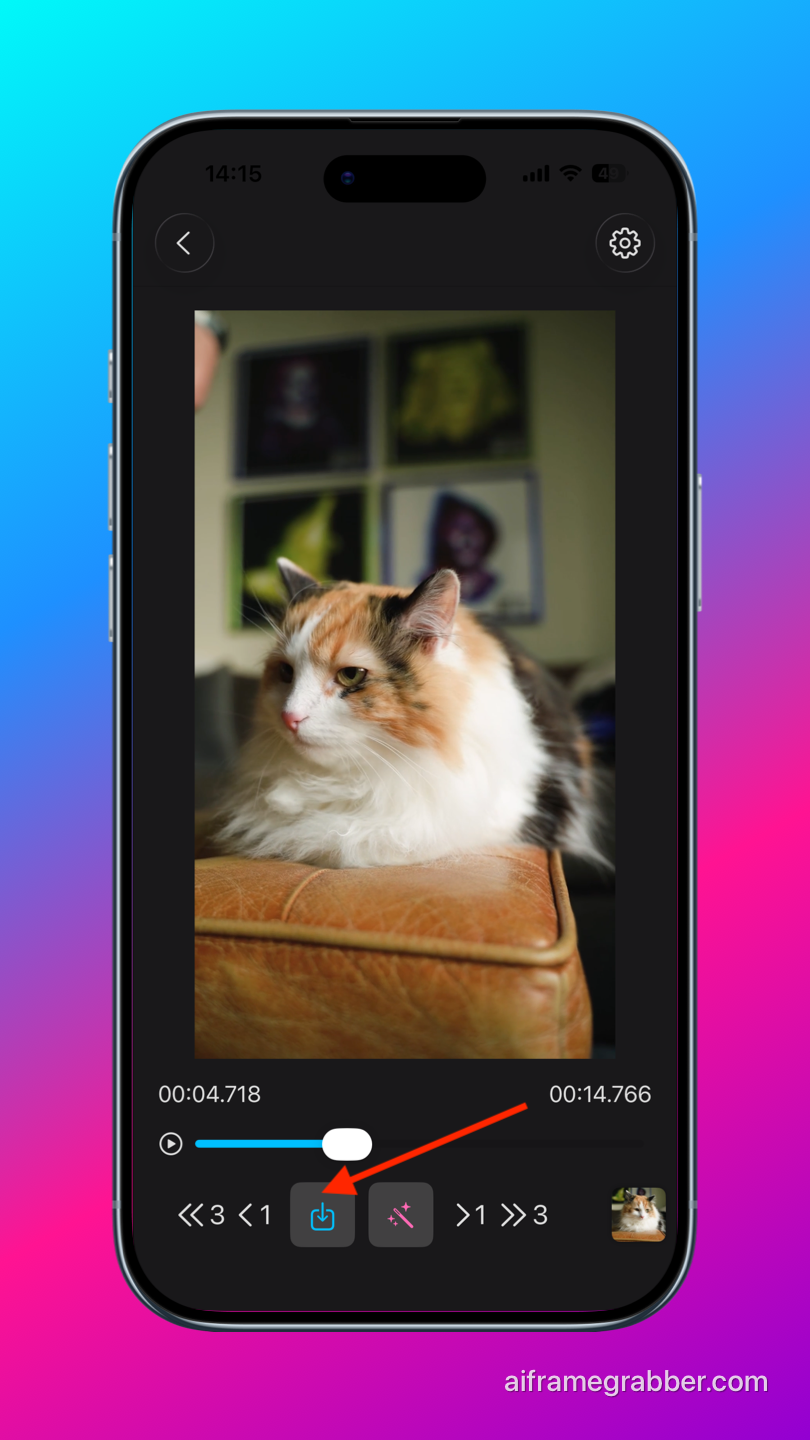
- Open AI Frame Grabber and select your video.
- Play or scrub through the video to find the frame you want.
- Tap the “Save Current Frame” button to save it as a photo.
The frame is saved instantly to your photo library.
Upscale Your Saved Frame to High Resolution
Video frames are typically lower resolution than photos taken with your camera. To get a sharper, higher-quality image, you can upscale your saved frame.
- Go to your gallery inside AI Frame Grabber.
- Find the frame you just saved.
- Tap the “Upscale” option to enhance it to high resolution.
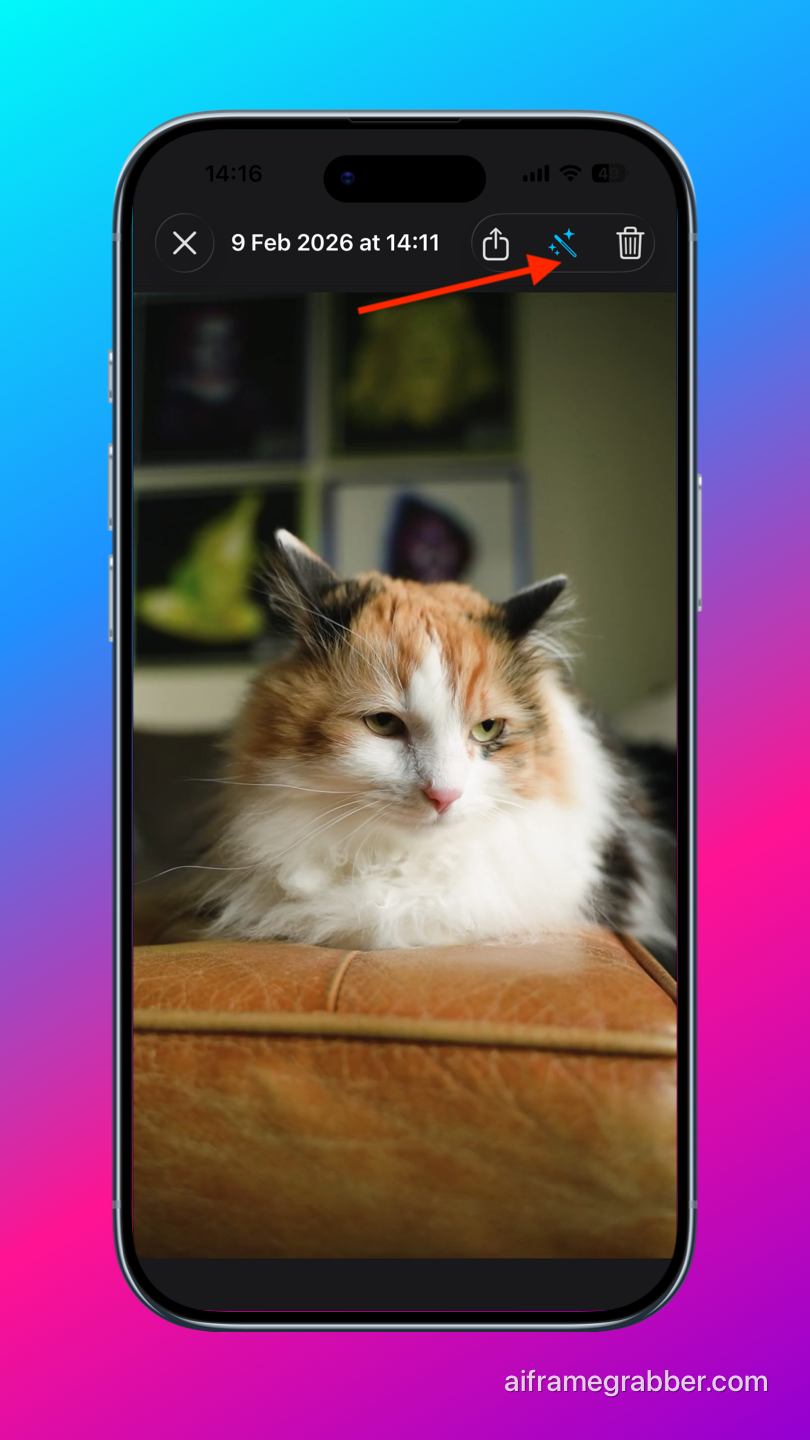
Upscaling works best on frames that are already sharp and in focus. If the original frame is blurry, try picking a different moment from the video first.
Method 2: Auto Pick the Best Frames
Don’t want to scrub through the video manually? Let AI do the work. AI Frame Grabber can automatically analyze your entire video and pick the best frames for you.
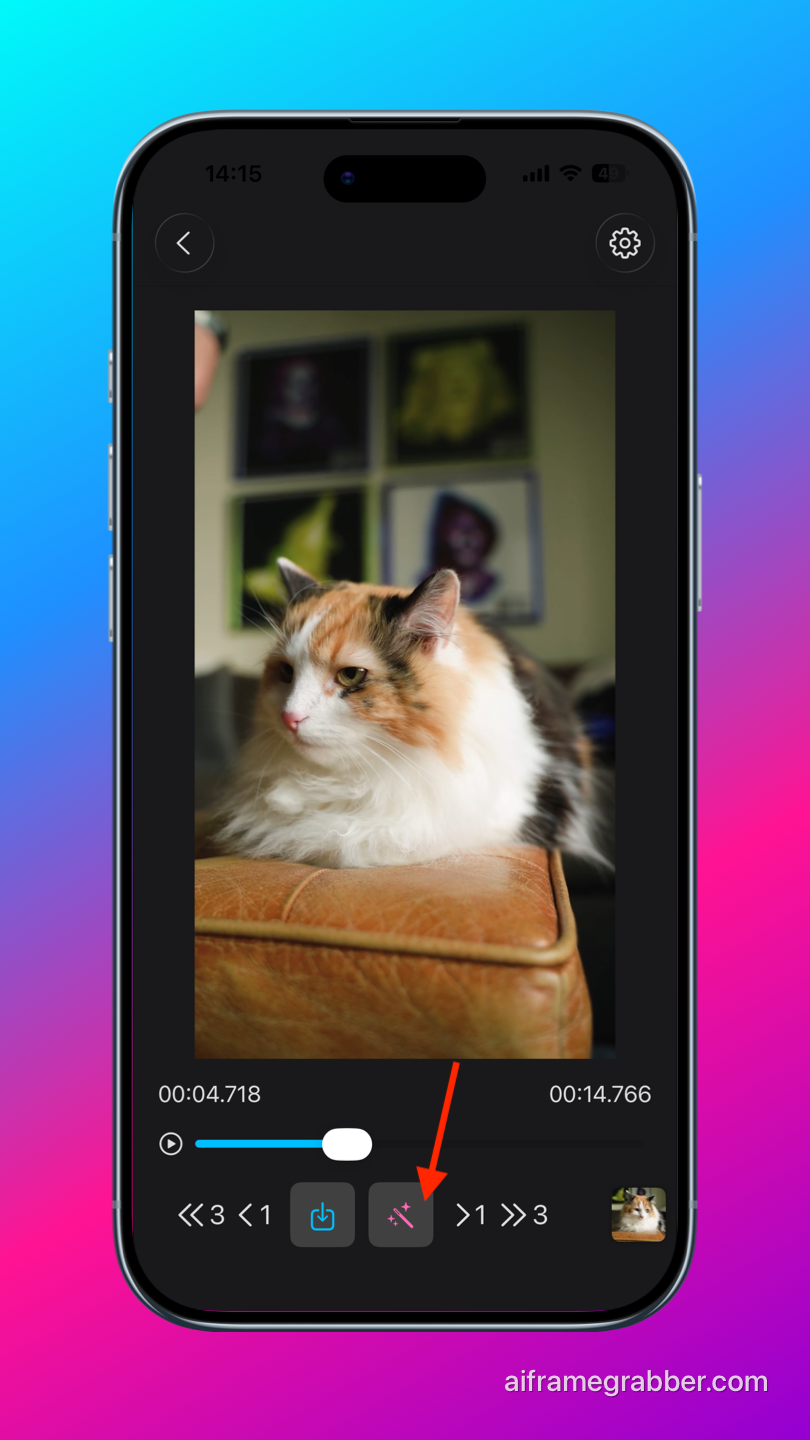
- Open AI Frame Grabber and select your video.
- Tap the “Auto Pick Best Frames” button.
- The app analyzes the video using AI and selects the sharpest, best-composed frames.
- Review the results and save the ones you like.
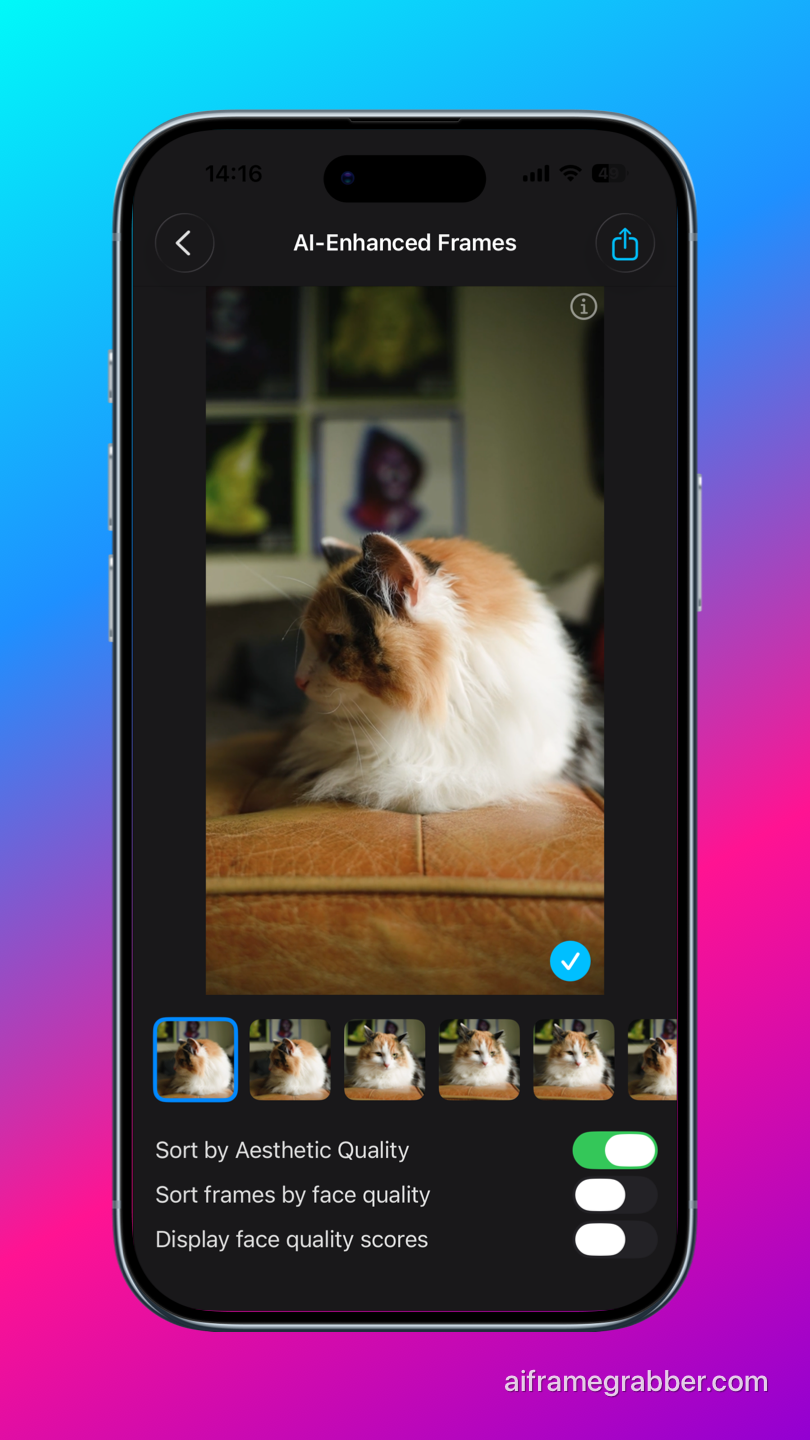
The AI analyzes every frame for sharpness, face detection, and composition to find the best moments. It filters out blurry, overexposed, or poorly framed shots so you only see the best results.
Try AI Frame Grabber App
Extract perfect photos from any video with AI-powered frame detection and upscaling!